《BOOTH/DLSITEご購入者様向けページ・Page for BOOTH/DLSITE Purchasers》
1. 最新バージョンのPart1およびPart2をダウンロードしてください。
2. Part1を解凍します。
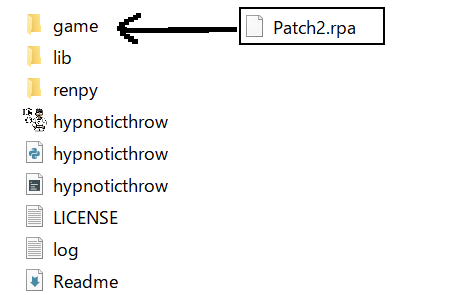
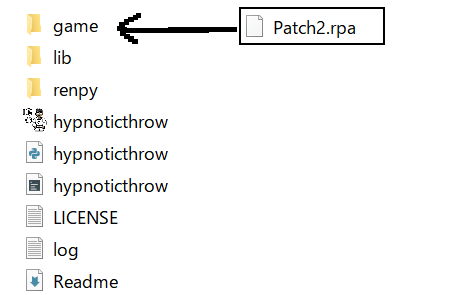
3. Part2も解凍し、中にある.rpaファイルすべてをPart1フォルダ内の「game」フォルダにコピー&ペーストしてください。
4. ゲームが正常に起動すれば作業完了です。新しいタイトル画面とBGMが再生されます。
※ご注意ください:
❗ Part1が最新バージョンでない場合、Part2との互換性がなく、ゲームが起動しません。
❗ 体験版・Early Access版・開発中のバージョンなどの非公式なPart1は、Part2との互換性がありません。
Part2をご利用いただくには、最新バージョンのPart1を購入履歴からダウンロードしなおしてください。Part1が最新でない状態でPart2をインストールした場合、警告メッセージが表示され、ゲームが起動できません。 必ず最新版のPart1をご使用ください。
以下のような場合は、開発者によるサポートの対象外となります:
📌 ガイドラインに従っていないことによる不具合
📌 ユーザー個別のPC環境が原因の不具合
📌 個人事情で最新のPart1を入手できない場合
📌 非公式なソースまたは改造ファイルに起因する不具合
1. 最新バージョンのPart1およびPart2をダウンロードしてください。
2. Part1を解凍します。
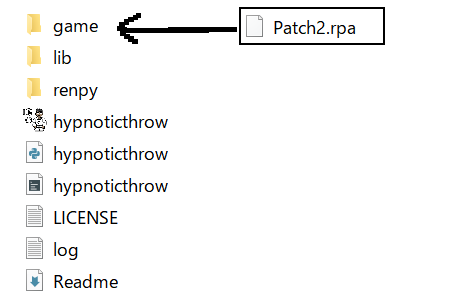
3. 次にPart2を解凍し、中にある .rpa ファイルすべてをPart1フォルダ内の 「game」フォルダ にコピー&ペーストしてください。
4. 正常に起動すれば完了です。新しいタイトル画面とBGMが表示されます。
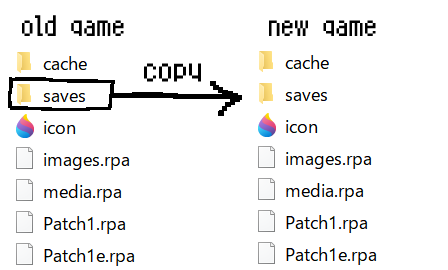
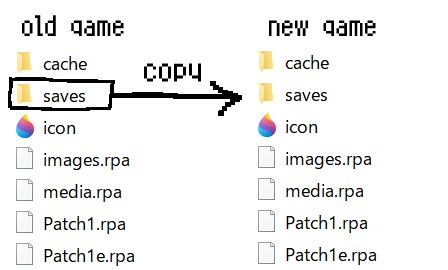
旧Part1の「game」フォルダ内にある「saves」フォルダを、新しいゲームの「game」フォルダにコピー&ペースト(または必要なファイルのみ移動)してください。
※⚠️ご注意ください:
❗ 念のため、旧Part1のフォルダは削除せず保管しておくことをおすすめします。
セーブデータの移動は、ゲームを完全に終了した状態で行ってください。プレイ中に移動すると、データが上書きされたり破損する恐れがあります。
❗ 個別にファイルを移動する場合は、「.save」ファイルだけでなく、「persistent」ファイルも忘れずに移動してください。(※リプレイ記録などを保持したい場合)
❗ 例外的に、セーブデータが読み込み位置を失い、エラーが発生することがあります。その際は、実験中・スケジュール中・イベント中など、異なる場面で作成されたセーブファイルを試してください。
❗ 体験版・Early Access版・開発中のバージョンなどの非公式なPart1セーブデータは正常に動作しない可能性があります。
❗ Part2の進行セーブを、Part1のみの状態で読み込もうとする場合(バージョンダウン)、不具合を引き起こし、ゲームが停止したり、セーブデータが破損する恐れがあります。
❗ Part2の導入とセーブデータの移行が完了した後は、旧Part1ファイルを削除しても問題ありません。
This game is structured with Part 1 as the base game, followed by additional parts released as patches. Therefore, after purchasing each file, you will need to combine them into a single folder. The process is simple—please refer to the instructions below.
1. Download the latest versions of Part 1 and Part 2.
2. Extract (unzip) Part 1.
3. Extract Part 2, then copy the all unzipped files (*.rpa) and paste them into the "game" folder inside the Part 1 directory. (Note: Paste into the subfolder named "game", not the main folder.)
4. If the game runs correctly, you're all set. (A new title screen and BGM will play.)
If Part 1 is not the latest version, it will not be compatible with Part 2.
The demo version, early access version, and other unofficial versions of Part 1 are not compatible with Part 2.
You will need to download the latest version of Part 1 from your purchase record. If your Part 1 is not up to date (Part 2 installed on outdated version of Part 1), a warning message will appear and the game will not proceed. Please install the latest version of Part 1.
Please kindly note that the developer is unable to provide support for:
📌Issue from not following the procedures outlined in the guideline
📌Issues caused by individual PC settings
📌Inability to obtain the latest version of Part 1 due to personal reason
📌Issues from files from unverified sources or unauthorized modified files
1. Download the latest versions of Part 1 and Part 2.
2. Extract (unzip) Part 1.
3. Extract Part 2, then copy the all unzipped files (*.rpa) and paste them into the "game" folder inside the Part 1 directory. (Note: Paste into the subfolder named "game", not the main folder.)
4. If the game runs correctly, you're all set. (A new title screen and BGM will play.)
Copy the entire "saves" folder from the "game" subfolder of your old Part 1, and paste it into the "game" folder of the new game. (or you can also move individual files under old "games/saves" folder to the new "games/saves" folder)
⚠️ The process is simple, but please keep the following precautions in mind:
❗ To be safe, do not delete your existing Part 1 files. Keep them stored in case you need to retry anything.
❗ Make sure to close all running instances of the game before moving save files. Moving save files while the game is running may cause your existing saves to be overwritten by the new game’s data.
❗ If you're moving files individually, be sure to transfer not only the .save files but also the persistent file, if you want to keep your persistent data (e.g. replay records)
❗ In rare or unconfirmed cases, save data may cause errors by losing its loading point. If that happens, try loading different save files created at various points (during hypnosis, schedules, event scenes, etc.).
❗ Save data from non-official versions of Part 1—such as demo versions, early access builds, or development versions—may not work properly or could cause errors.
❗ In the case of intentional downgrading (such as attempting to load a Part 2 progression save file while only Part 1 is installed), errors will occur. The game will halt, and there is a risk of save file corruption. Therefore, I strongly recommend against attempting this.
❗ Once everything is done perfectly (Part 2 installment & save files transfer), you are free to delete the old Part 1 files.
Please Enjoy!
Iwantmore
2025-06-07 11:43:38 +0000 UTC