New version released!
There are many additional features and improvements.
For a while, update records will be posted on the linked page.
It's a standalone app for efficiently collecting and managing data from "CIVITAI", a platform for sharing Stable Diffusion models and AI-generated images.
To master Stable Diffusion, the quickest way is to gather a large number of models and images, prompts.
Fortunately, CIVITAI has an immense amount of data shared, so you can obtain it from there.
However, it's not realistic to manually save all that immense data one by one 🥹
You might often find yourself wondering where to place each model, what name to give them, every time you download.
You'll need to monitor whether downloads succeeded properly and keep track of your download history. Additionally, data often gets deleted for various reasons, so you need speedy and real-time data collection capabilities.
Even after downloading, you face issues as it's difficult to keep track of which files are which models just from the file explorer. From downloading to data management, it's not a straightforward process. No matter how much time you have, it won't be enough, and you'll want to give up...
That's where this CIVITAI Download Manager comes into play! With its advanced download options and automation system, you'll gain overwhelming speed and control over management!
-Download Features-
You can download Civitai's AI models and their sample images all at once with a single click.
You can separate save folders based on model type or tags and more.
You can also download images only, models only, or posts.
If a download is interrupted, you can automatically or manually resume from where you left off.
You can reorganize models already downloaded to your PC using CDM's methods.
You can save model data as text files, JSON files, and HTML files.
You can save detailed download logs.
You can skip downloading models already downloaded (duplicates allowed in settings).
It automatically identifies same-named files with different contents, renames and downloads them.
There are no garbled 2-byte characters like when downloading from a browser.
-Mini CIVITAI / Local Browser-
An online/offline model and image browser is provided.
You can filter models with advanced search and bookmark functions.
You can save pages you've browsed and resume browsing from those saved pages.
By cross-referencing your local models and the CIVITAI database, you can easily check for updates.
-Others-
Being a standalone application, it does not impact environments like WebUI.
The supported operating systems are Windows, Mac (Intel / Apple Silicon), and Linux.
-Download-
Windows - Old version (English, 中文, and user language patch)
Mac (Intel / Apple Silicon) - Old version (English, 中文, and user language patch)
Linux (Built on Ubuntu/x86_64) - Old version (English, 中文, and user language patch)
Latest / Early Access version (Latest/EarlyAccess Plan Members only)
Since this is a non-App Store application, you might see a warning the first time you run it. Please feel free to ignore it and proceed with the opening.
Mini CIVITAI - Quick Model / Image Downloader -


Local Model Viewer - Offline File Manager -


Module Base Filter

Relocation - Relocation downloaded models along with assets -

Ultimately, we aim to create a comprehensive file manager for Stable Diffusion!
The content on this page is very outdated.
Please refer to the new user's manual video instead.
-How to use-
YouTube
Additional Feature : Version 1.06 , Version 1.7
Let's start by configuring the save folder.
In the Download tab, select a save folder in the "Save Folder" section.
You can add save folders by clicking the "Open" button or through the Settings tab.

You can also change the folder where files are saved for each model type. Check the "separate save folders by model type (auto" option, and the files will be automatically sorted into folders according to their model type.
Additionally, checking the "Separate save folders by model type (manual)" option allows you to manually specify the location where files will be saved for each model type. Use the dropdown menu located below the checkbox to configure the folder where various files will be saved.

By default, the log file is saved on the "desktop/civitai-models."
If you want to change the location where the log file is saved, please configure it in the settings tab.
Next, get the download URL from the model page. You can get it by right-clicking and selecting "Copy Link."

Paste the URL you got into the "URL" text box in the Download tab. Then, configure any necessary settings, such as the type of data you want to save, and simply click the "Download" button. You can also initiate the download by pressing "Ctrl + S."

-Metadata files and logs-
Details of the saved models and images are saved in HTML and text files.


The download logs are also saved as text files.


-Others-
By setting your API Key in the settings tab, you'll be able to download models that require login or early access models through the this app.
You can create an API key by going to Account settings on Civitai, then selecting API Keys, and adding a new API key.
Deletion of saved folder lists can be done in the Settings tab. After removing the folder lines entered in the text box, press the 'Apply Settings' button. You can also apply the settings with 'Ctrl + S'.
If the behavior is strange, please try restarting the app. If that doesn't work, try resetting the settings in the Settings tab and then restart the app.
-Lock and Ads-
Civitai Download Manager, in its initial state, comes with limitations (a limit on multiple URL input lines) and includes advertisements. These limitations and advertisements can be removed by logging into the app after joining the Patreon membership. (Unlock tab)
The membership details are as follows.
「Civitai Download Manager Unlock Plan」
Unlock - 1$/ Month
「Civitai Download Manager Unlock and No-Ads Plan」
Unlock and No-Ads - 3$/ Month
In addition to these memberships, there is also a Support Plan available. Its content is equivalent to the Unlock and No-Ads Plan. I await your support🥺
Click here for all plans
-Q&A-
Q1. I received a warning and can't open it. What should I do?
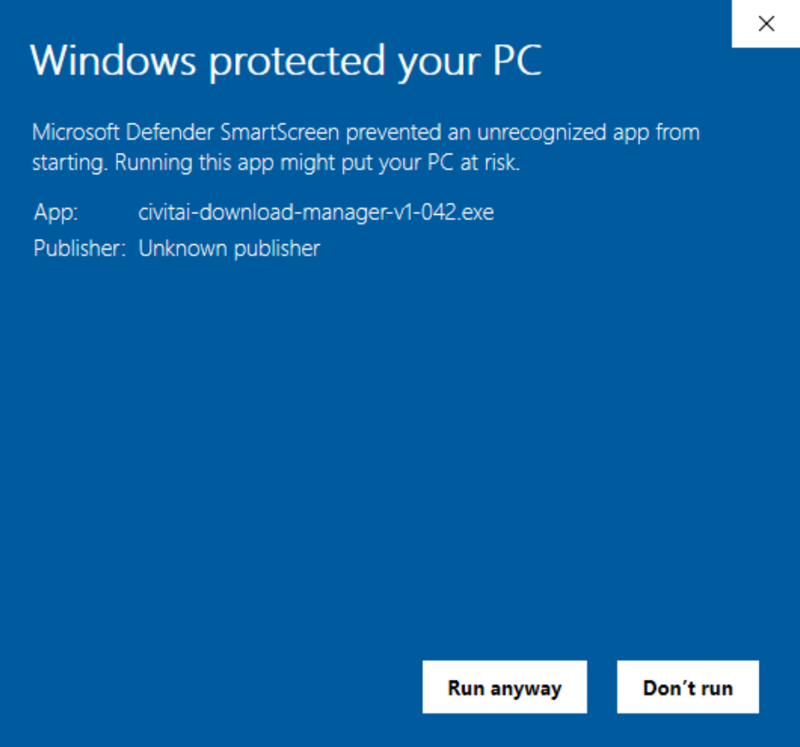
A - For Windows : Click "More info" and then press "Run anyway"
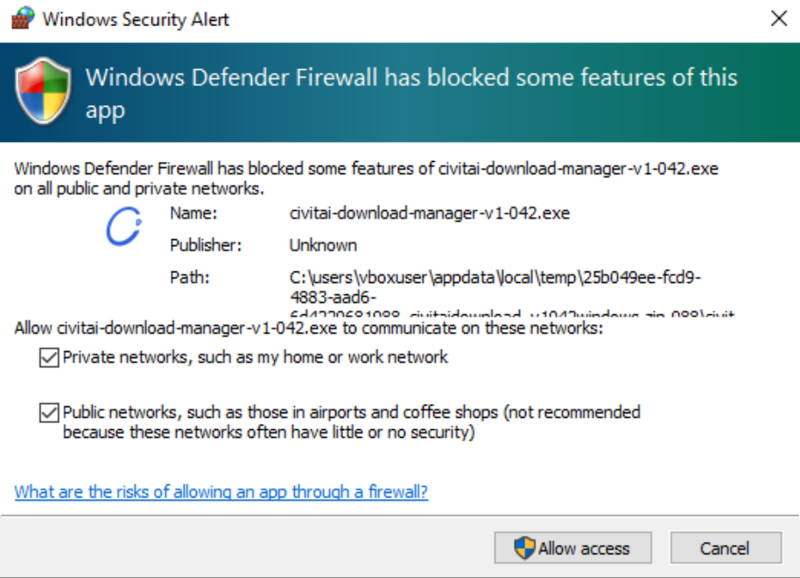
Also, when logging in to Patreon, you may encounter a screen like this. Please select one or more of the options, 'Private Network' or 'Public Network,' to grant access.
If you allow 'Public Network,' you can access it from outside, but if you don't intend to download from outside, selecting 'Private Network' alone should be sufficient.
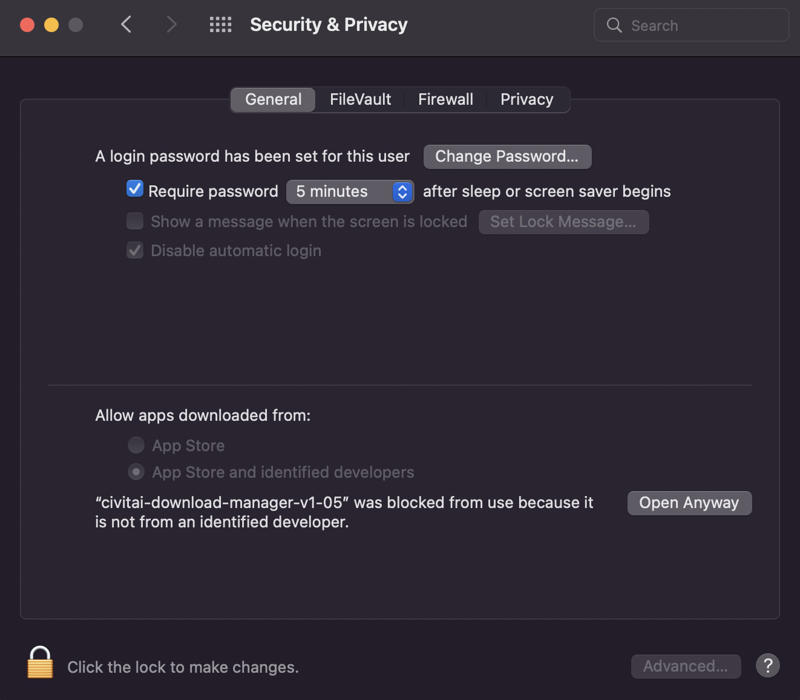
For Mac : You will see a screen like this at startup. Please click "OK."
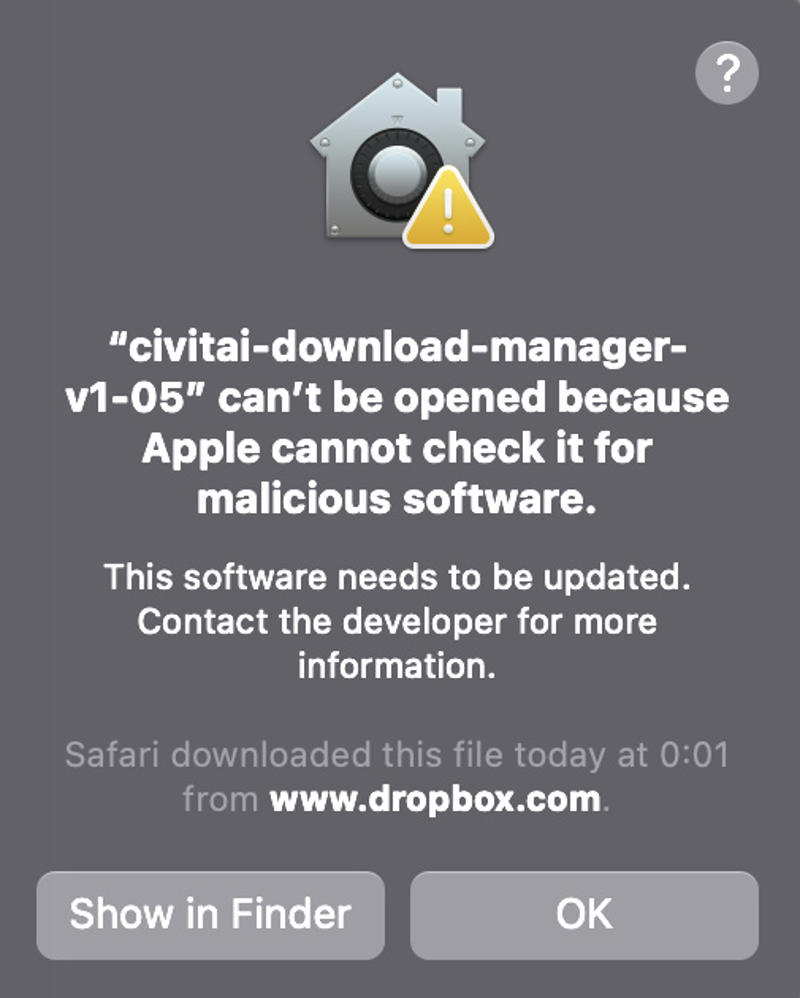
After that, open the System Preferences app,
navigate to Security & Privacy > General, and proceed to allow the downloaded app to run. Click "Open Anyway" when prompted.
Q2. An error occurred indicating that the file path for saving is too long. What should I do?
A - According to Windows specifications, there is a limit to the length of file paths. While saving is still possible, some file operations will be restricted if the path length exceeds the limit. Therefore, it is recommended to save to a directory with a shallower hierarchy whenever possible. Additionally, this restriction can be lifted by modifying the registry.
The method is as follows:
1. Launch Command Prompt with administrator privileges. (You can find Command Prompt by searching for 'cmd' using the search function.)
2. In the Command Prompt, enter the following commands.
reg add "HKEY_LOCAL_MACHINE\SYSTEM\CurrentControlSet\Control\FileSystem" /t REG_DWORD /v LongPathsEnabled /d 1 /f
3. Restart your Windows.
This will lift the length restriction on the path, allowing you to handle files with longer paths normally. However, be cautious as this operation may potentially cause issues with other applications. If any problems arise, you can revert the settings back.
The method is as follows:
1. Launch Command Prompt with administrator privileges. (You can find Command Prompt by searching for 'cmd' using the search function.) 2. In the Command Prompt, enter the following commands.
reg add "HKEY_LOCAL_MACHINE\SYSTEM\CurrentControlSet\Control\FileSystem" /t REG_DWORD /v LongPathsEnabled /d 0 /f
3. Restart your Windows.
Q3. Suddenly can't open the app.
It appears that the settings file can become corrupted if the PC is forcefully shut down while the app is running in a Windows environment.
I am considering solutions, but for the time being, please delete the shared_preferences.json file to resolve the issue.
The settings file is located at
Windows
C:\Users\your username\AppData\Roaming\com.minamostyle.civitai-download-manager\CIVITAI Download Manager\shared_preferences.json
Mac
/Users/your username/Library/Preferences/com.minamostyle.civitai-download-manager.plist
Deleting the settings file will reset the settings, so please make a note of necessary settings.
-In Conclusion-
If you have any bug reports or questions, please feel free to leave a comment. You can also reach out on X (formerly Twitter).
In the future, I've been thinking on and off about creating an image viewer and file manager specialized for AI-generated images. It would be handy if we could perform advanced filtering on files using information embedded in the generated images, don't you think?